


Frequently Asked Questions
How do I post the highest-quality Live Photo to social platforms? Any recommended settings?
For the best visual result, export your Live Photo from Wink at 1080p and 30 FPS. This ensures a crisp, smooth animation that’s optimized for uploading and viewing on social media.
I saved my file as a Live Photo, but it uploads as a still image on social media — why?
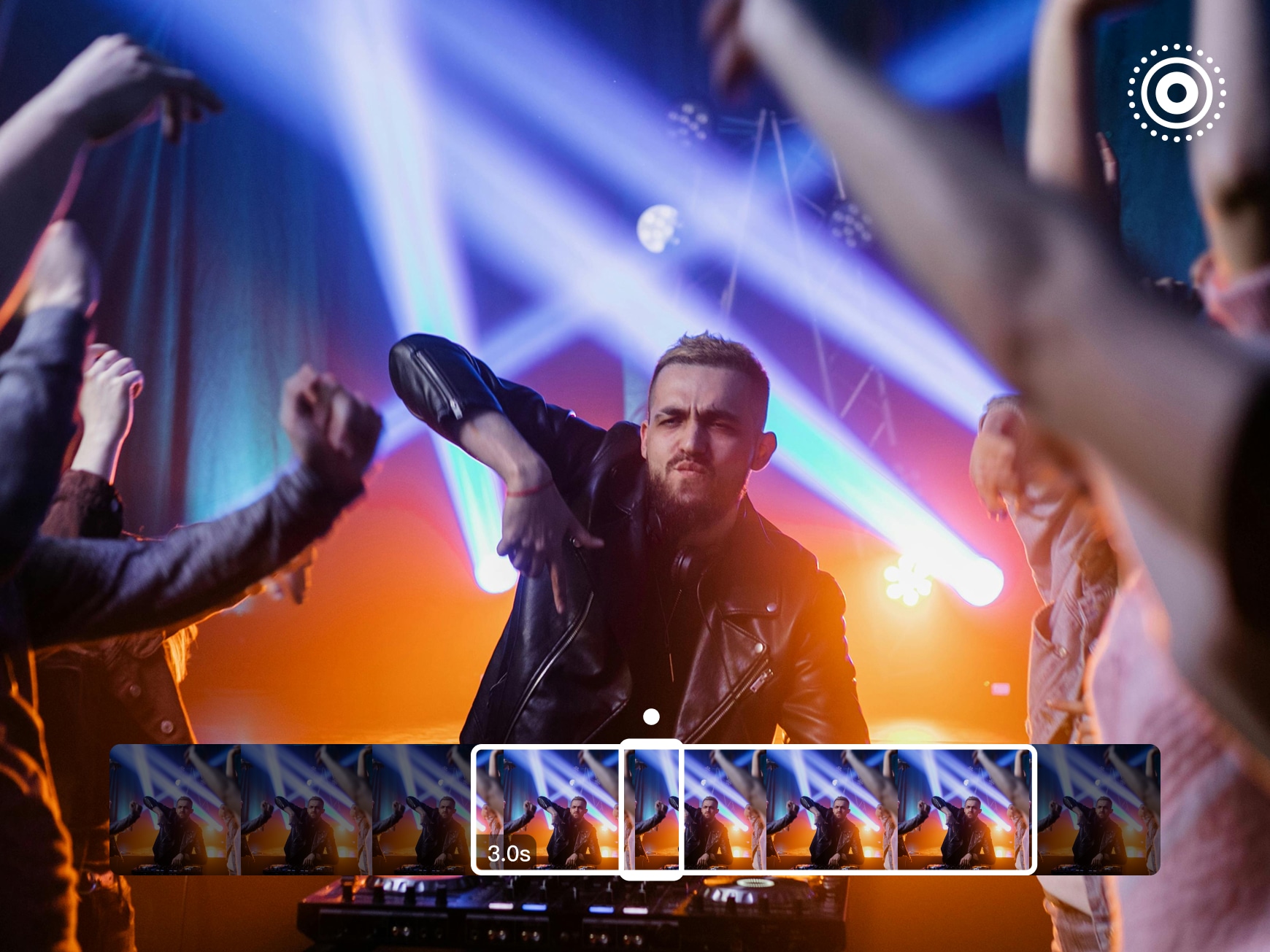
This is usually related to length restrictions. Many platforms only recognize a Live Photo if the motion is up to about three seconds. If your Live Photo runs longer, the platform may treat it as a regular image instead of an animated Live post.
Why do Live Photos lose their animation when sent to Android users? Is there a workaround?
Most Android devices don’t support the native Live Photo format, which is why the animation doesn’t play on their end.
A simple workaround is to export your Live Photo as a video before sending it. In Wink, import your Live Photo into Video Editing, then export as a video in the settings menu. This keeps the motion, looks just as dynamic, and works perfectly for sharing between iPhone and Android.

Wink makes my Live Photos look like they were shot on a whole different phone. The retouching is subtle but super flattering — perfect for Instagram and Stories.
As someone who edits creator content daily, Wink has been a lifesaver. We get tons of Live Photos that are blurry or shaky, and the Live Photo quality enhancer fixes them quickly without needing reshoots. Being able to convert short clips into Live Photos is a huge bonus — especially when we need consistent assets for social campaigns.
Wink gave my old Live Photo library a second life. Outdoor portraits in low light used to feel unusable, but the enhancer feature restores detail and lighting without losing texture. What I love most is how natural the beauty adjustments look — skin still looks real. Plus, turning video snippets into Live Photos helps me share work with clients in a way that feels more engaging and personal.