
AI Image Upscaler
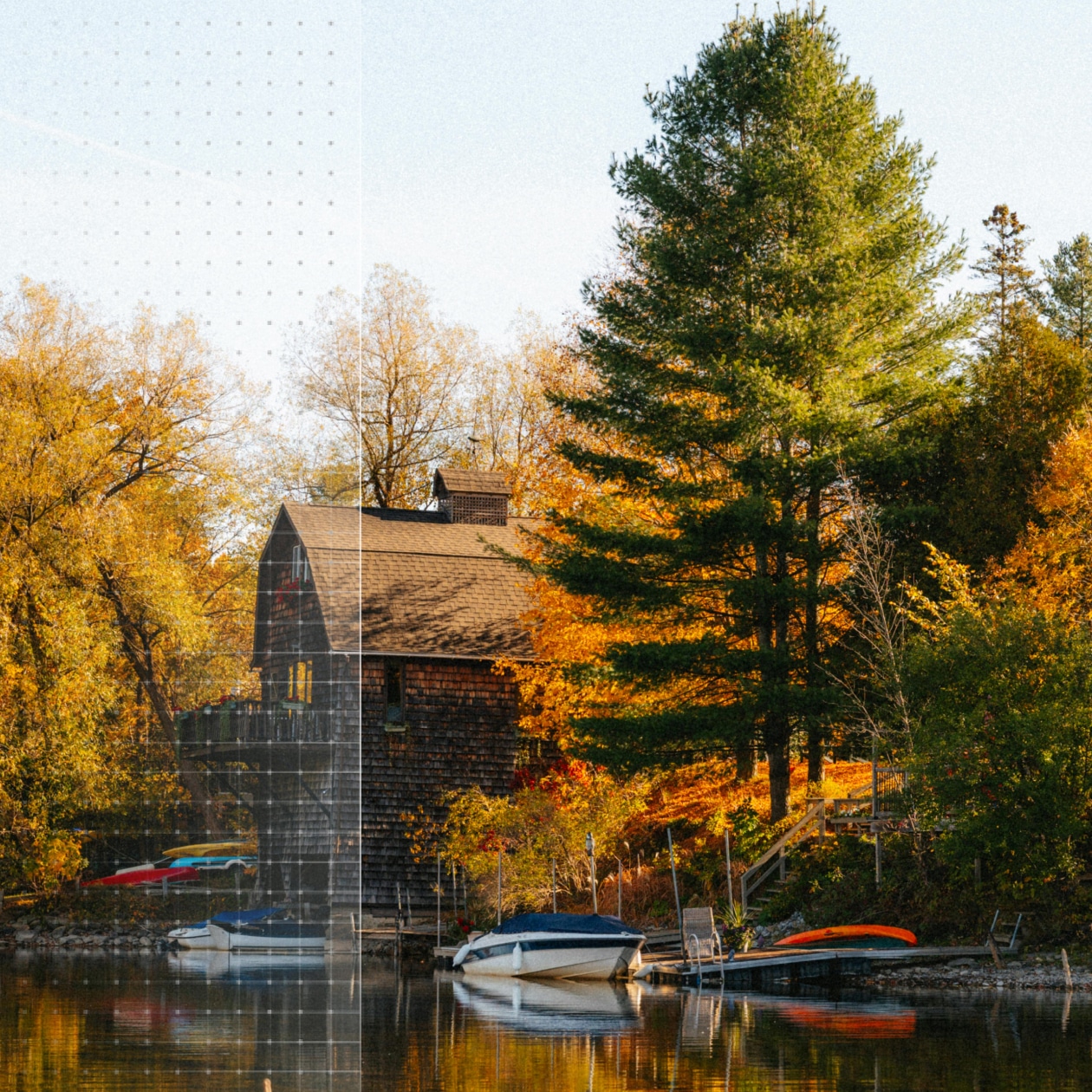

How to upscale a photo to 4K?
Step 1: Upload An Image
Open the Wink AI image upscaler and select the image from your device's folder. The tool supports batch upload to save time if you are looking to enhance multiple images at once.
Step 2: Upscale Images
The AI image Upscaler provides three repair options for you to select. These include the 1080P, 2K image upscaler, and 4K resolutions. Choose your preferred option and click on “Get Started" to process the image.
Step 3: Export
Once upscaling is complete, click “Export” to download your high-resolution photo. Beyond AI image upscaling, explore more smart editing tools in Wink’s workspace to enhance your visuals even further.
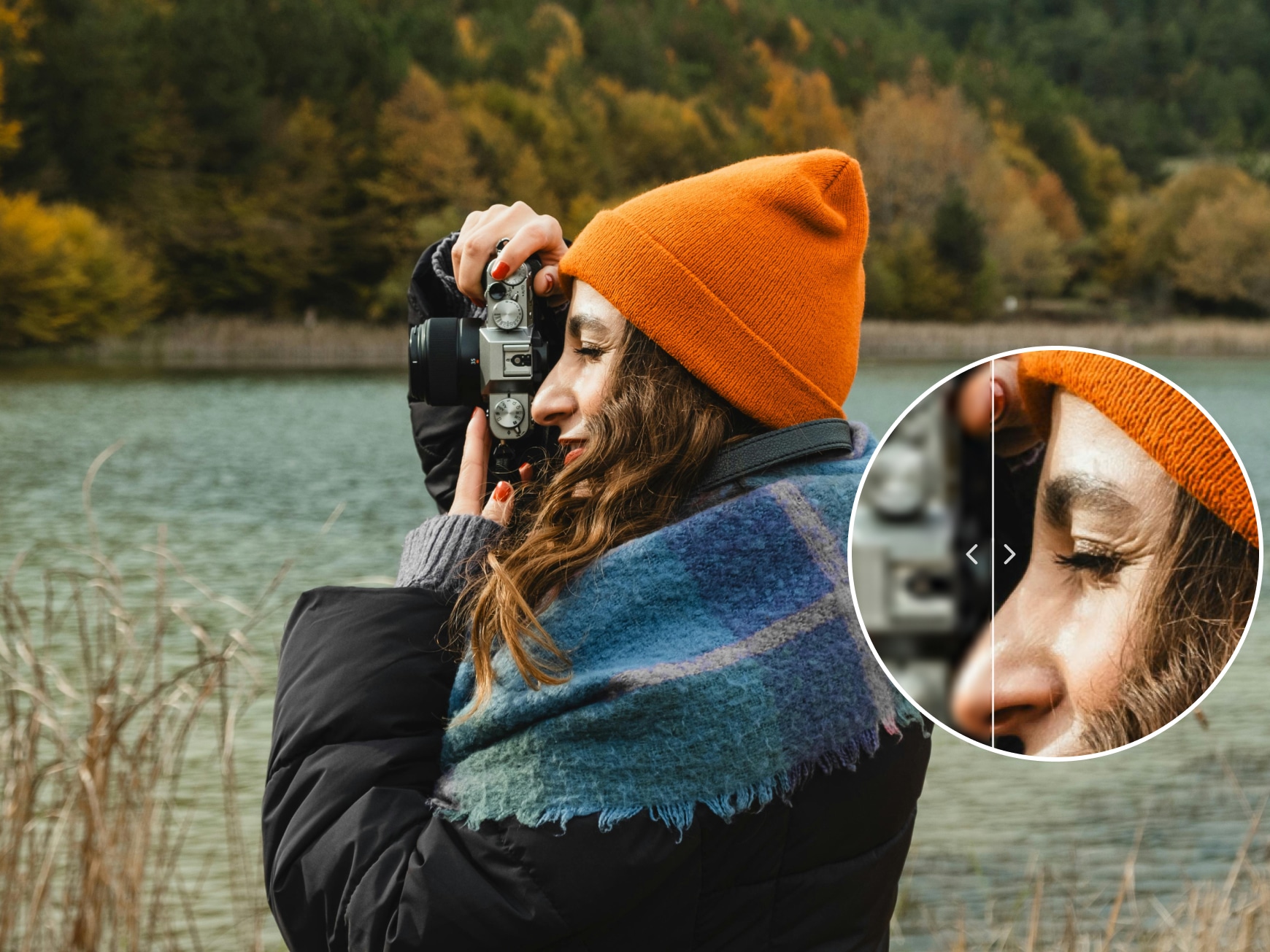
Upscale Images without Losing Clarity
Recreate every pixel of your image with precise accuracy and clarity. Want to upscale images to 2K or 4K? The Wink AI image upscaler works across all image types and ensures every detail remains sharp and clear. Simply upscale your image without blurs or noise.
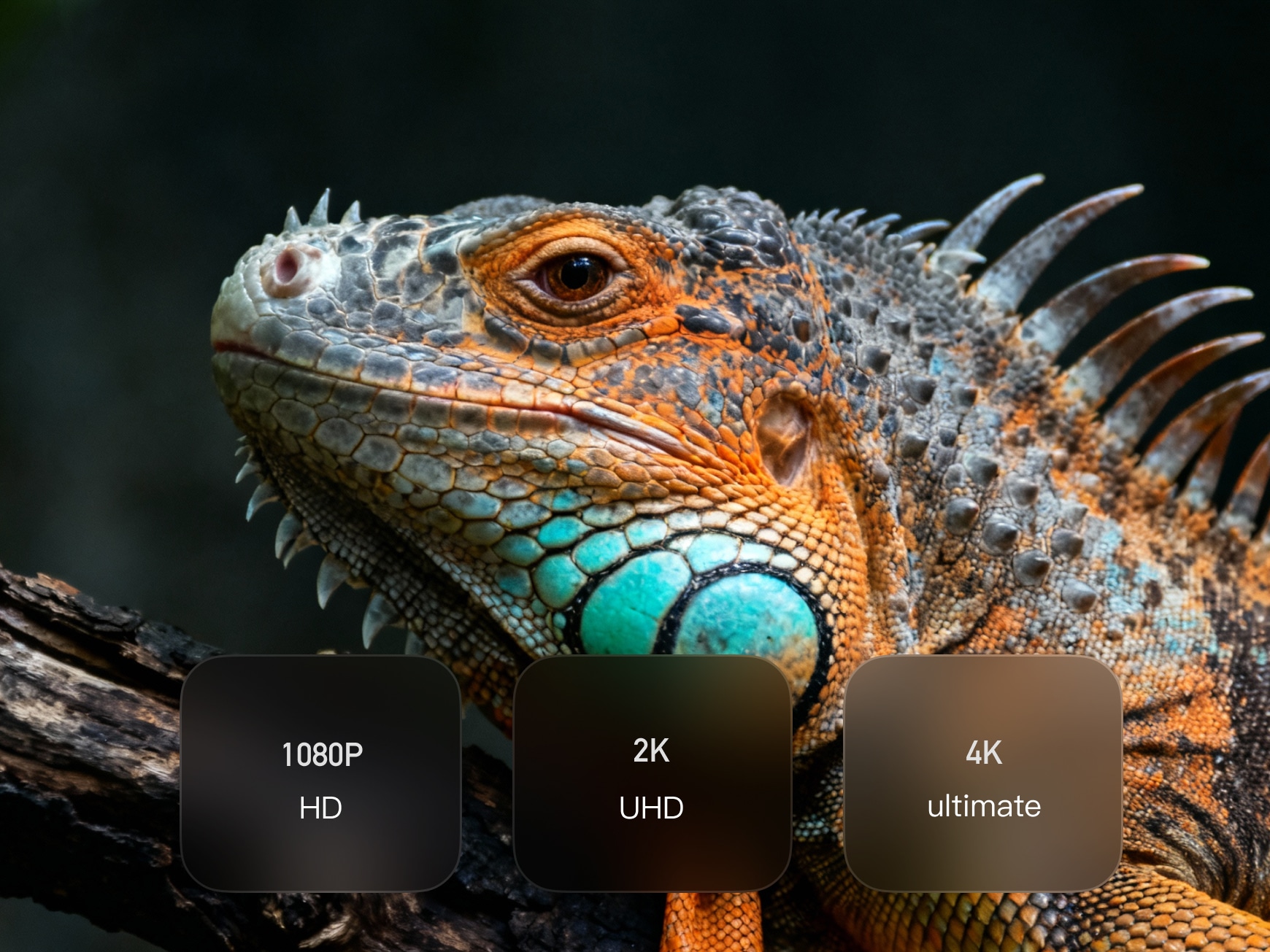
Multiple Resolution Output
Pick your preferred resolution from multiple output options. From 2k to 4K, choose the option that best fits your image needs. Whether you are creating an attractive social media post or displaying the image on a large screen, the wink AI free image upscaler offers resolution options that retain detail. Upscale your image to the peak quality with all-around clarity.
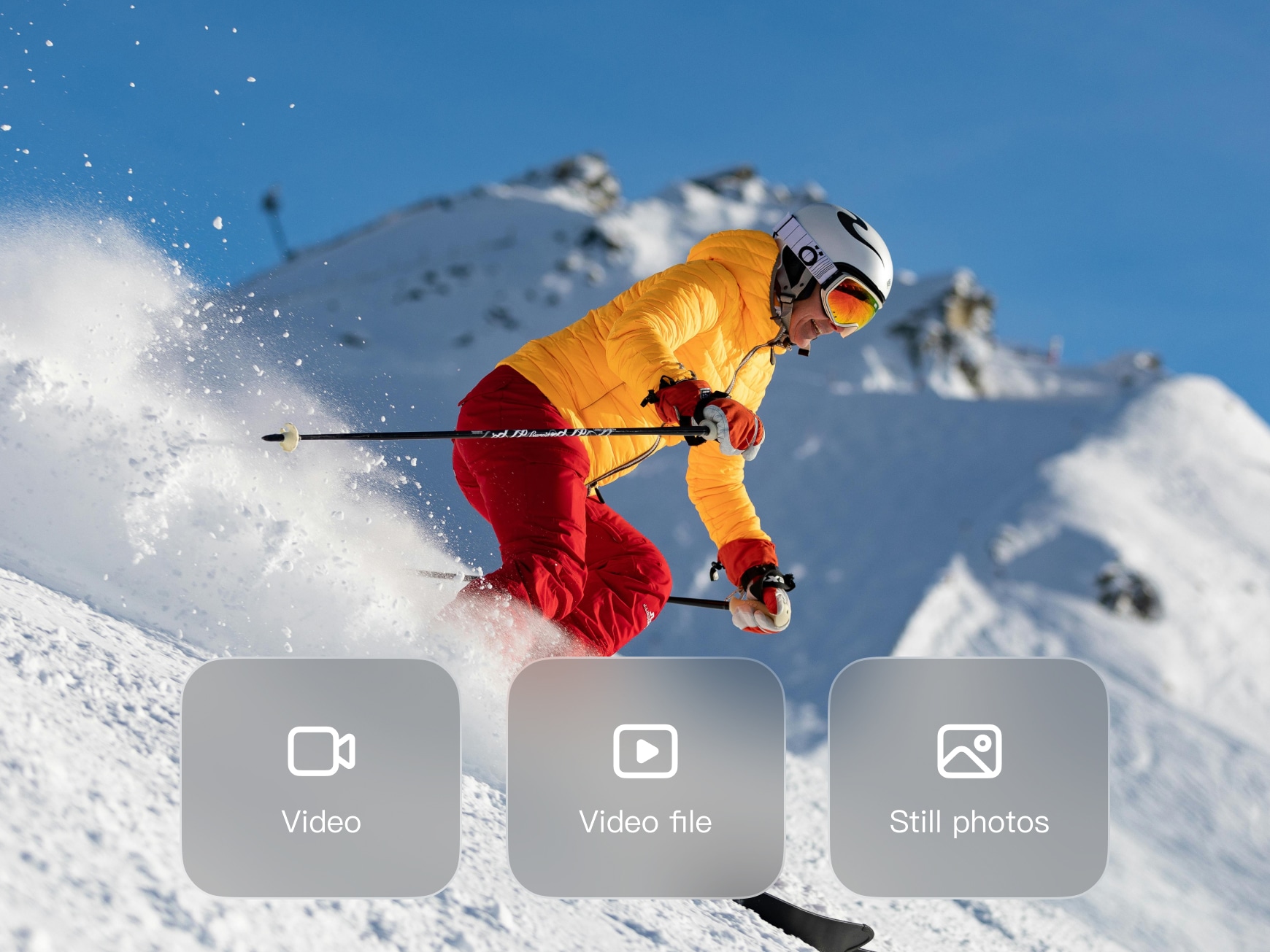
Upscale images with Batch Upload
Save time with the AI image upscaler's batch upload feature. The AI bulk tool allows users to upscale images for free from the device folder. Select multiple images from your folder to enhance, then click Upload. With smart AI technology, you will get refined results for everyone with a single upload.
Frequently Asked Questions
Will upscaling a low-resolution image make it blurry or pixelated?
Can I customise the output resolution when enhancing an image?
You can customise the resolution of an image when enhanced. The Wink AI upscaler provides a custom option to choose your preferred output quality. From HD to 4 K resolution, you can select your preferred resolution before export. And download at a higher resolution with enhanced texture.
Will restoring old or low-quality images result in a loss of quality after upscaling?
No, your old images cannot lose quality after upscaling. Rather, the AI improves the overall quality. Whether you want to upscale images with AI, an old album, or a low-resolution download, the AI image upscaler increases the resolution. And maps out the blur with enhanced textures. With the Wink AI, the tool maintains the original image colour while refining it for a high-quality result.
What is an Image Upscaler?
An image upscaler tool helps to enhance and refine images to a higher resolution. If you want to sharpen your blurry images, an upscaler fills the need. This also extends to restoring fine details in your photos. With AI-powered technology, you can bring your images to life with high-quality output. An upscaler can also support higher resolutions, such as 1080P, 2K, and 4K. You can use the tool to sharpen and professionalise your old social media photos.
What is the difference between image upscaling and image resizing?
Image upscaling is different from resizing. If you are looking to enhance a low-resolution image to HD quality, upscaling it is a viable option. From HD to 4K, you can upscale the result for better output. You can also refine the details for improved usage scenarios. Resizing images lets you change their size for a better fit. These can be instances when you need a profile header. Or you want to make a public post for your product images with a specific ratio and requirement. Resizer tools work best for this.
Wink’s AI Image Upscaler saved me so much time! My old social media photos now look sharp and professional in just one click.
Love it! Even my old vacation photos are crystal clear now — no more blurry memories.
I’m genuinely impressed with Wink. I often work with low-res client images or scanned materials, and this tool restores every detail flawlessly. The AI preserves textures, colors, and sharpness, making images ready for print or digital campaigns. It’s now an essential part of my workflow, saving me hours of manual editing.