
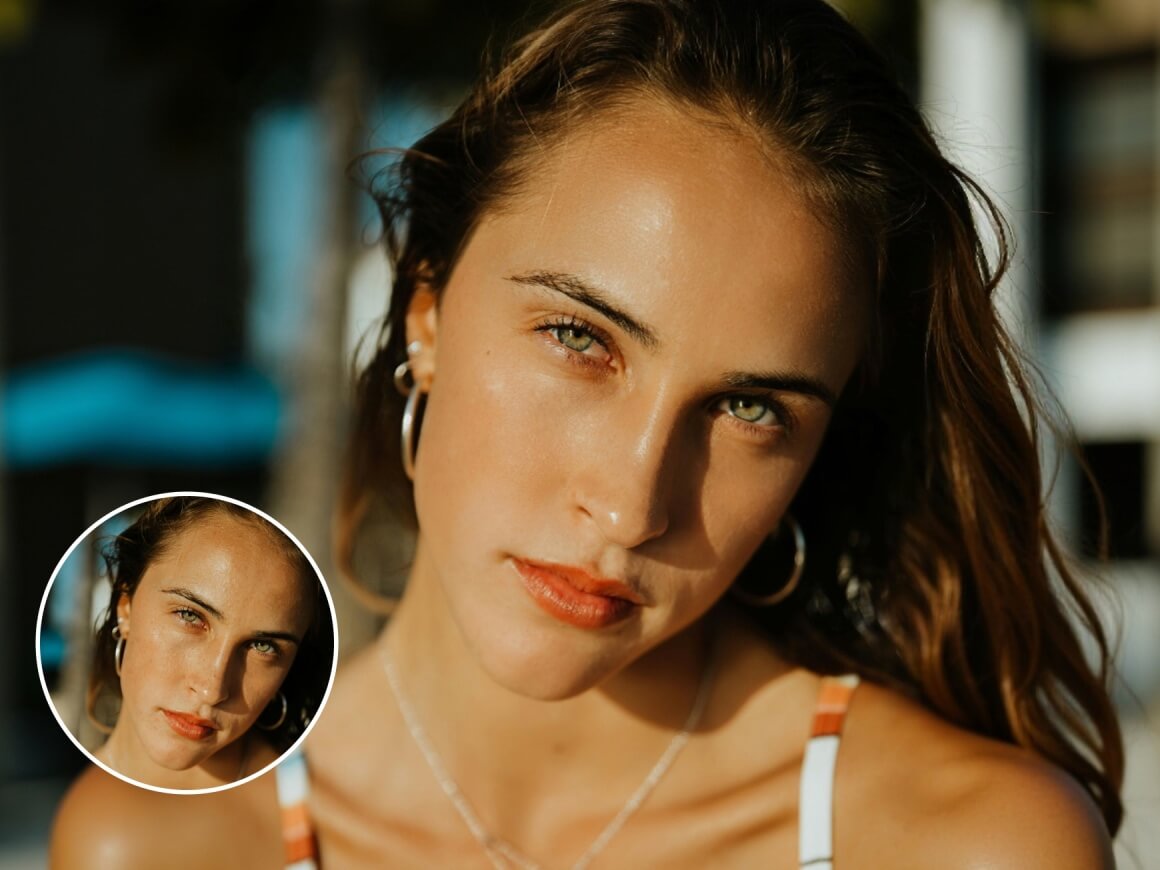
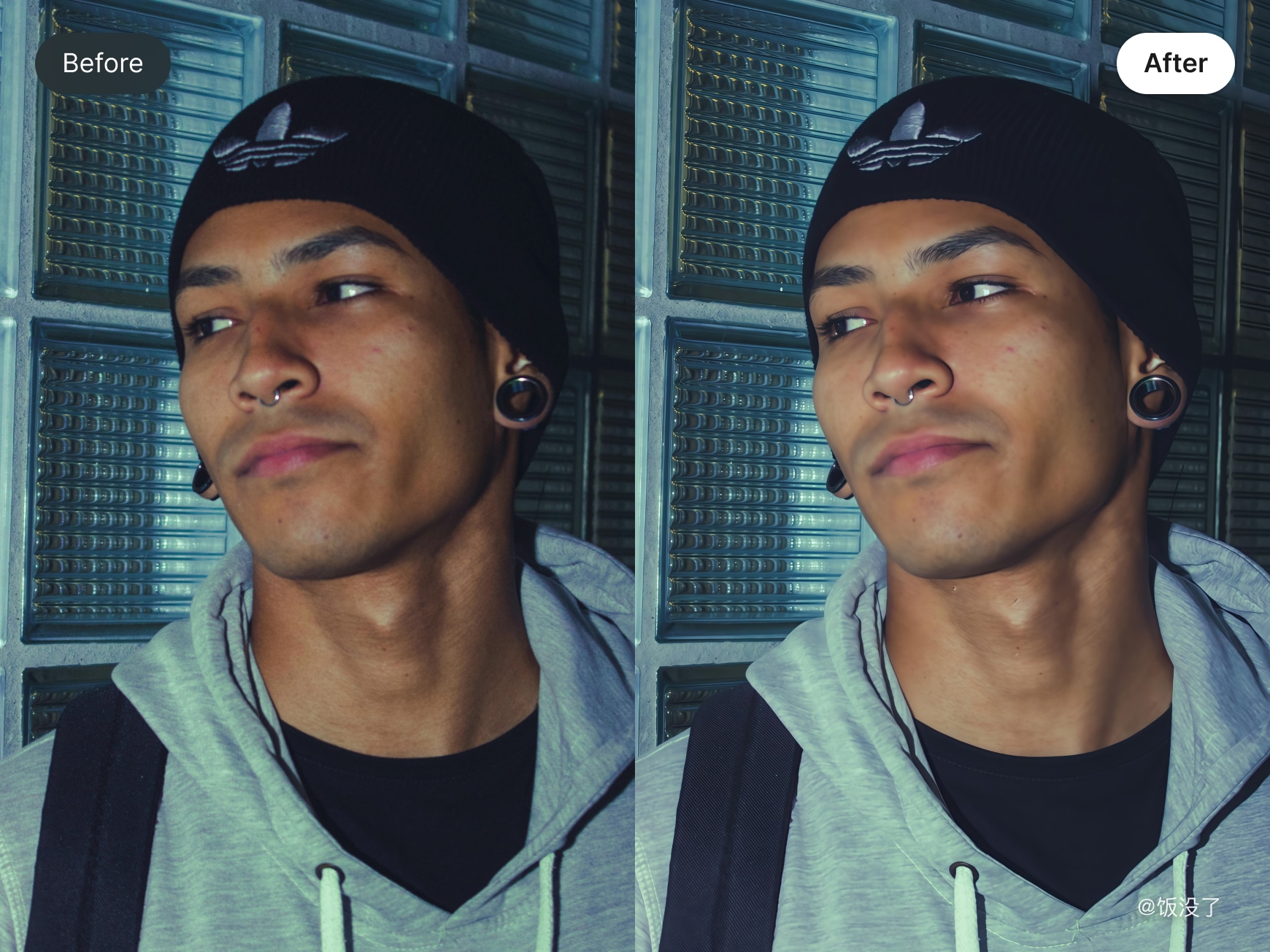
Textured Skin Smoothing
The “Textured” mode creates naturally healthy-looking skin. Blemishes are removed while preserving realistic skin texture, ensuring your portrait skin looks polished yet authentic. Perfect for videos where natural motion matters.
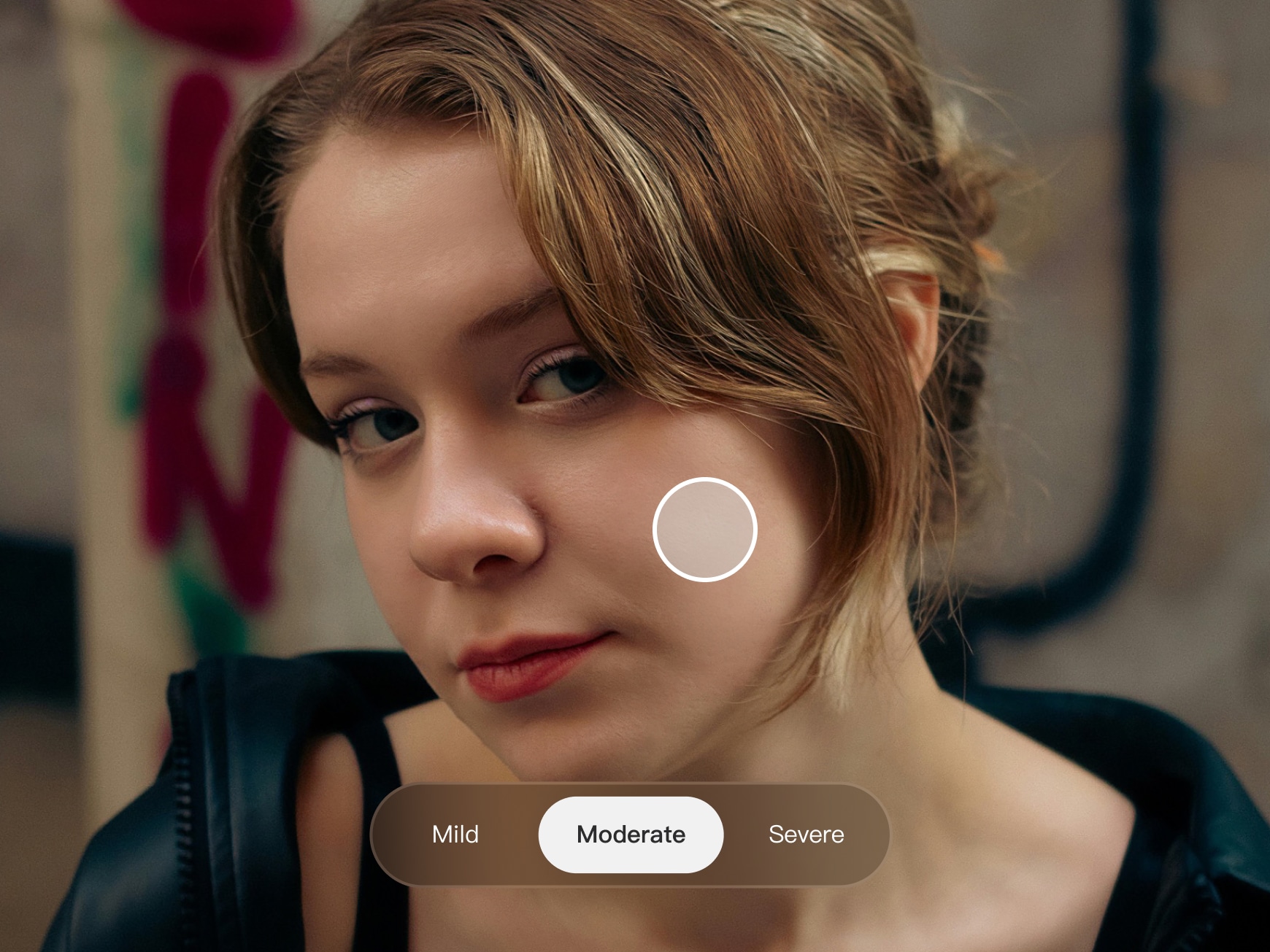
Manual Skin Retouch
Switch between three intensity levels to match your needs. Apply smoothing wherever you like with manual mode for precise control, allowing personalized, natural-looking skin refinement on any area of the face.
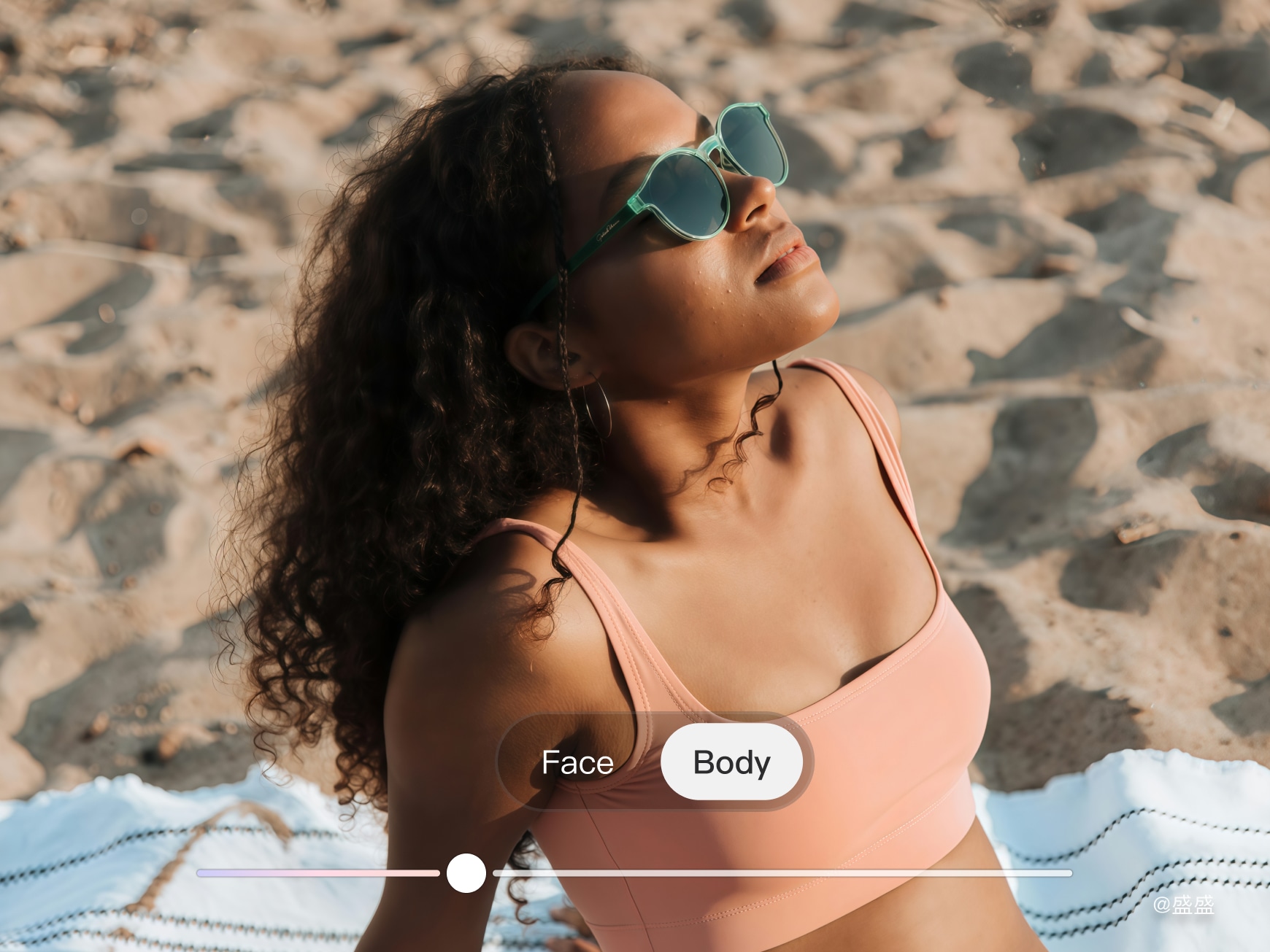
Full-Body Skin Smoothing
Automatically process neck, elbows, knees, and other details to unify skin texture from head to toe. Achieve consistent, refined skin across your entire body in videos — all with one click and natural results.
Frequently Asked Questions
My skin looks fake after smoothing. What can I do?
This usually happens when smoothing intensity is set too high. Try using the “Textured” mode or apply manual adjustments for more control. For larger blemishes or acne spots, use the blemish removal feature first, then apply skin smoothing. This preserves your skin’s natural texture and lighting while keeping a realistic look.
Videos shot indoors or in poor lighting look flat after skin smoothing. How can I restore dimension?
Skin smoothing can reduce facial shadows and highlights, making the face appear less dimensional. To fix this, use the Makeup / Contour feature after smoothing and lightly enhance facial shadows and highlights on areas like the cheeks and nose bridge. This restores a natural 3D appearance while keeping the skin smooth.
Why does my video look slightly blurry after skin smoothing?
Over-smoothing can reduce fine details. Make sure the smoothing intensity is moderate. After completing all retouching steps, use Wink’s “Video Clarity Restoration” feature. It restores essential details softened by smoothing, keeping the skin refined while maintaining video clarity.

I hate how my skin looks after late-night study sessions when filming vlogs — blemishes and tired skin everywhere. Wink’s AI Skin Retouch is a lifesaver! It’s not a one-click face blur; it keeps the skin texture natural. I usually set it around 40-50%, which covers imperfections without looking fake. Exported videos look crystal clear — my friends keep asking if I used a new filter!
I film lookbooks and outfit videos regularly, and lighting can be tricky. Wink’s AI Skin Retouch smooths skin naturally while keeping facial texture and highlights. It’s subtle but effective — my videos look polished without losing authenticity, and my audience keeps asking how I get such clean footage.
After intense workouts, my face gets red and shiny, and straight-from-camera footage looks messy. Wink’s skin smoothing is essential! The ‘Textured’ mode tames sweat reflections while keeping natural muscle definition and skin glow. The videos feel fresh and balanced — real yet polished.